Chrome Autofill Viewer is the free tool to easily see and delete all your autocomplete data from Google Chrome browser.
Chrome stores Autofill entries (typically form fields) such as login name, pin, passwords, email, address, phone, credit/debit card number, search history etc in an internal database file.
'Chrome Autofill Viewer' helps you to automatically find and view all the Autofill history data from Chrome browser.
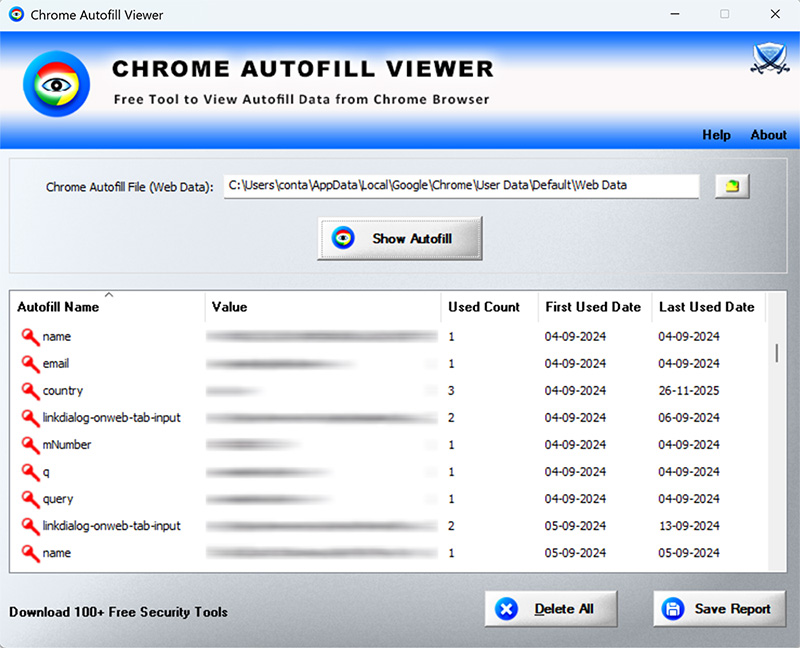
For each of the entry, it display following details,
Autofill Name
Value
Total Used Count
First Used Date
Last Used Date
You can also use it to view from history file belonging to another user on same or remote system. It also provides one click solution to delete all the displayed Autofill data from the history file.
It is very simple to use for everyone, especially makes it handy tool for Forensic investigators.
Chrome Autofill Viewer is fully portable and works on both 32-bit & 64-bit platforms starting from Windows Vista to Windows 11
Features
Instantly view all the Autofill list from Chrome browser
On startup, it auto detects Autofill file from Chrome's default profile location
Sort feature to arrange the data in various order to make it easier to search through 100's of entries.
Delete all the Autofill data with just a click of button
Save the displayed Autofill list to HTML/XML/TEXT/CSV file
Easier and faster to use with its enhanced user friendly GUI interface
Fully Portable, does not require any third party components like JAVA, .NET etc
Works on all Windows platforms from Vista to Windows 11
Chrome Autofill File Location
Chrome stores Autofill data in a file called 'Web Data' within each of the profile folder,
C:\Users\Administrator\AppData\Local\Google\Chrome\User Data\Default\Web Data
This file is stores in SQLite database format and contains various fields including field name, value, used count, date etc
How to Use?
Chrome Autofill Viewer is easy to use with its simple GUI interface.
Here are the brief usage details
Launch Chrome Autofill Viewer on your system
By default it will automatically find and display the autofill file from default profile location of Chrome. You can also select the desired file manually.
Next click on 'Show Autofill" button and all stored Autofill data will be displayed in the list as shown in screenshot 1
below.
If you want to remove all the entries, click on 'Delete All' button below.
Finally you can save all displayed entries to HTML/XML/TEXT/CSV file by clicking on 'Export' button and then select the type
of file from the drop down box of 'Save File Dialog'.
Screenshots
Release History
Version 3.5 : 28th Mar 2026
Improved Autofill secrets recovery for all Chromium type browsers. Updated manifest and GUI messages.
Version 3.0 : 6th Jan 2026
Mega 2026 release supporting Windows 11 platform. Fully renovated GUI interface with new icons. Improved HTML report.
Version 2.0 : 27th Jul 2016
Mega release with the support for Windows 10 edition. Also supports autofill data recovery from latest Chrome version